

Beschrijving
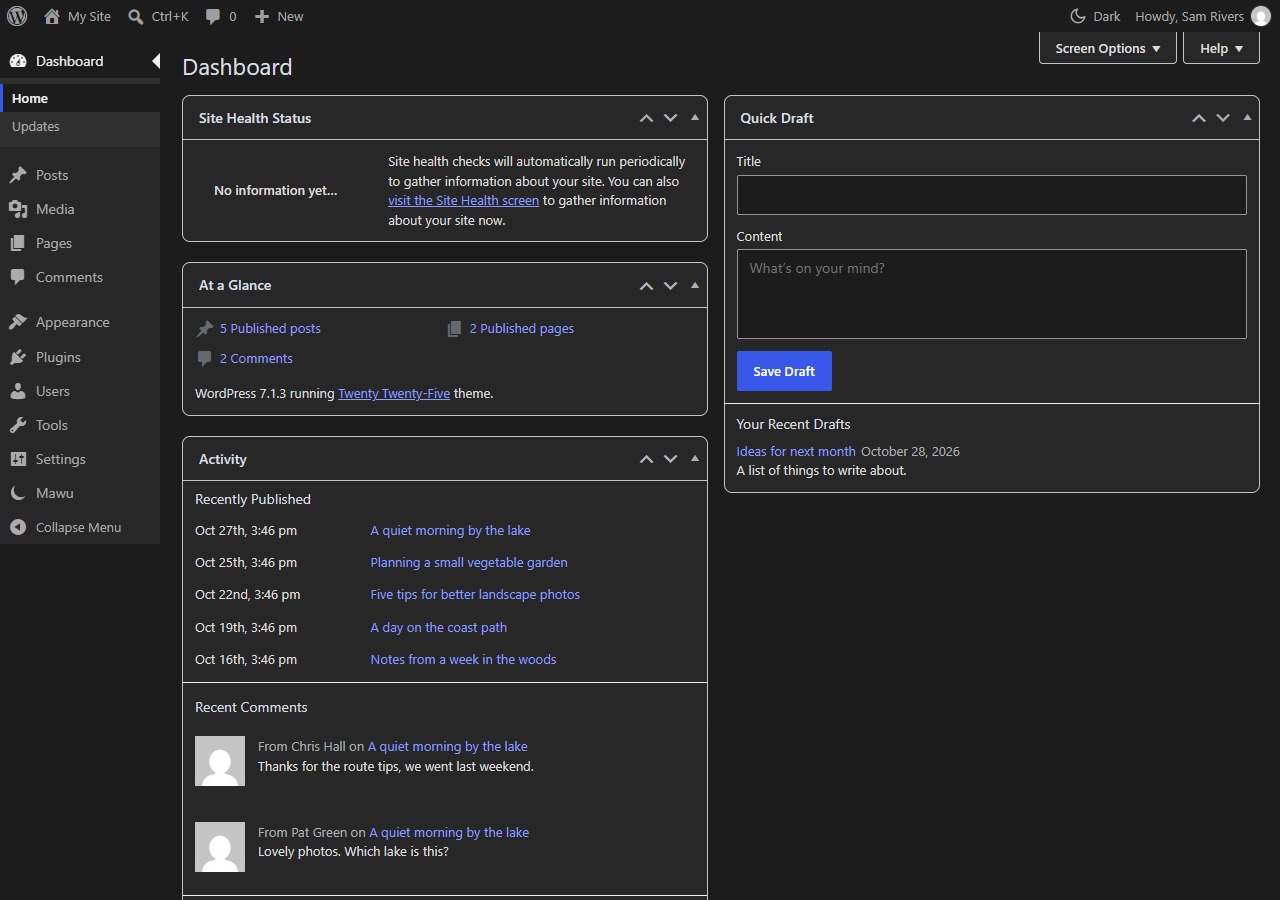
Mawu Dark Mode is a free dark mode for WordPress, for you and for your visitors. In the admin it darkens the whole wp-admin: the dashboard, the menu and toolbar, the block editor (including the page you write on), the Classic Editor, the login page and other plugins’ settings screens. On your website it is optional: visitors get a dark mode switch, or the site follows their phone or computer setting. It needs no account, and nothing is tracked unless you opt in.
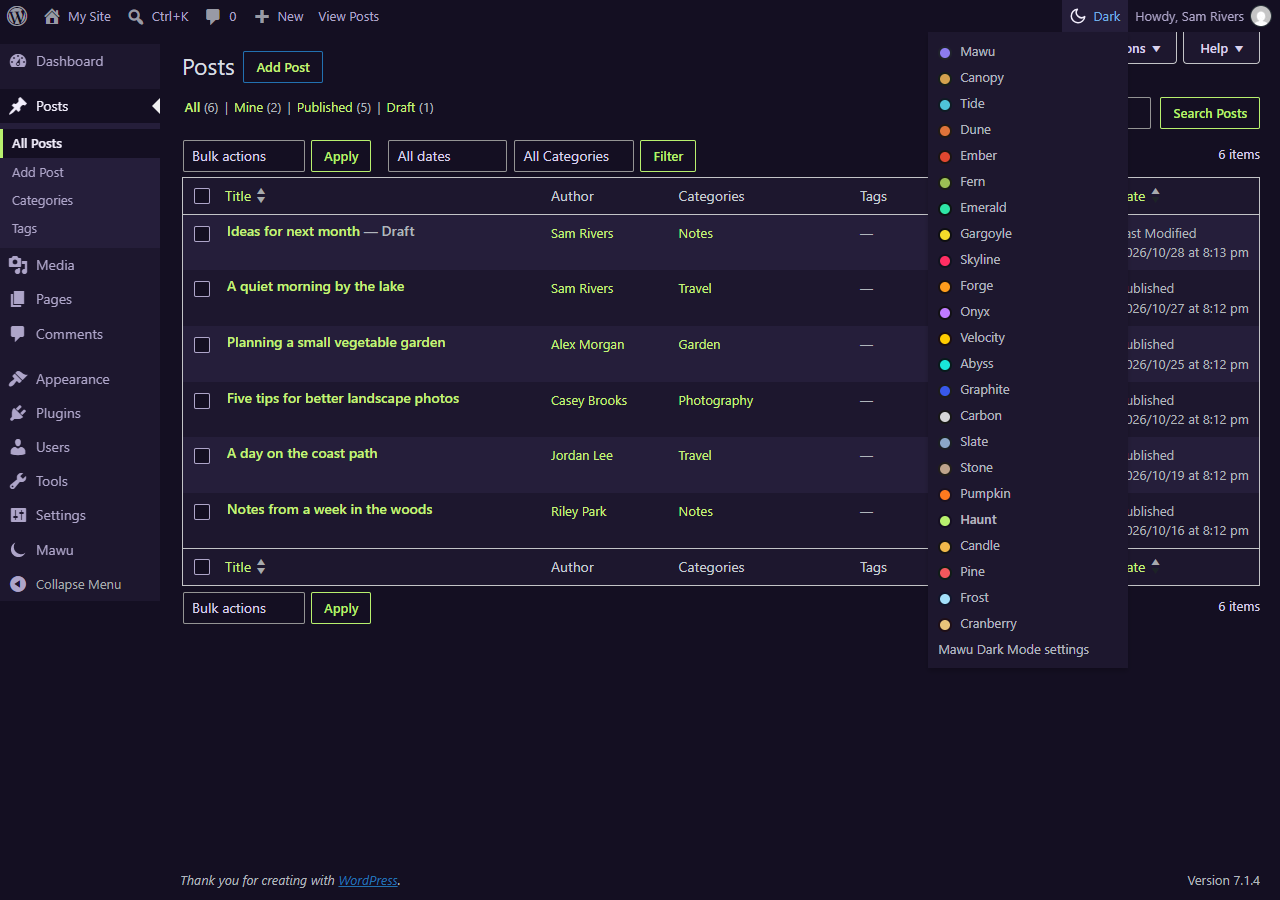
In the admin, Mawu is not a floating toggle. Its 23 themes are real WordPress admin color schemes, listed under Users Profile Admin Color Scheme next to “Default” and “Midnight”. Each person on your site picks their own, so your choice changes nothing for anyone else.
Why Mawu?
WordPress’s built-in color schemes only change the menu and toolbar. The rest of the dashboard stays bright, and so does the block editor’s writing canvas. Your website has no dark mode at all. Mawu covers all three:
- The whole dashboard. Mawu reads each element’s real color and adjusts it, the way browser extensions such as Dark Reader do, so other plugins’ pages change too, not just a fixed list of core screens.
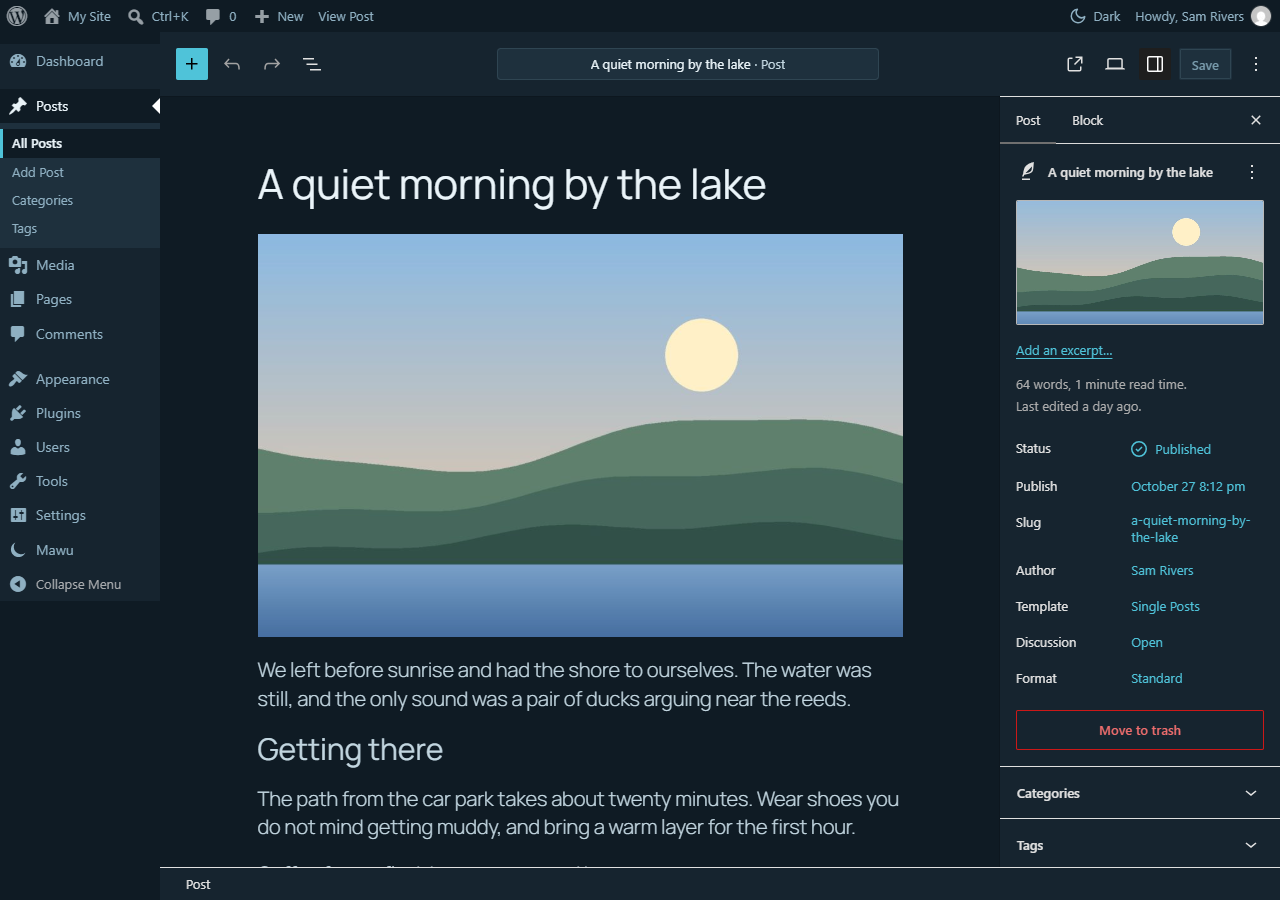
- The block editor, inside and out. The toolbar, sidebars, buttons and writing canvas all follow your theme. No separate editor plugin is needed.
- Your website too. Turn on dark mode for visitors and they get the same themes with a switch, or the site follows their device. Mawu uses your theme’s own colours where it can, dims photos instead of inverting them, and shows no white flash on load. A live preview shows your site before you save.
- Readable text. Every theme is checked against WCAG AA contrast rules for text, links and buttons.
Features
- 23 themes in six collections: the original Mawu (violet), the Neutral collection (Graphite, grey with WordPress blue; Carbon, plain dark grey with no colour; Slate, blue-grey; Stone, warm grey), the Nature collection (Canopy, Tide, Dune, Ember, Fern), the Hero collection (Emerald, Gargoyle, Skyline, Forge, Onyx, Velocity, Abyss), the Halloween collection (Pumpkin, Haunt, Candle) and the Christmas collection (Pine, Frost, Cranberry).
- Quick switch: a button in the top admin bar turns dark mode on or off from any screen, with no page reload. Hover it to pick another theme, or press Ctrl+Alt+D (you can change or turn off this shortcut). An optional floating button can sit in the corner too.
- Match my device: the admin goes dark when your computer or phone is set to dark, and light again when it isn’t. It changes straight away, with no reload. Free, and set per person.
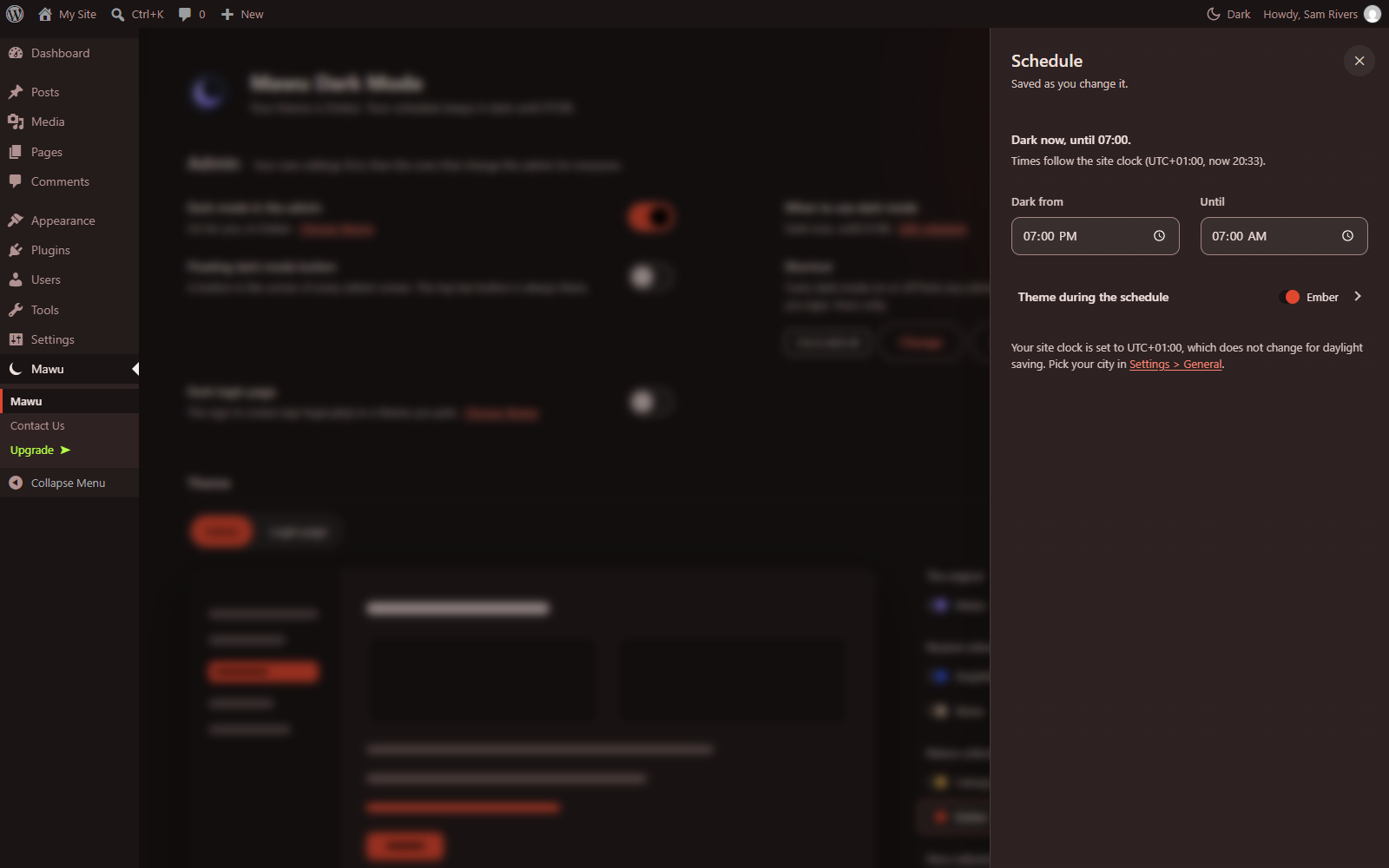
- Night-time schedule: set your own hours, for example 7pm to 7am, and your admin switches theme by itself, then back to your usual scheme in the morning.
- Block editor: writing canvas, toolbars, sidebars and panels.
- Classic Editor: the TinyMCE toolbar and writing area.
- Login page: an optional themed wp-login.php screen, with its own theme picker.
- Other plugins: their admin pages are adjusted automatically, and plugin authors can use Mawu’s color variables (see the FAQ).
- Settings page: preview any theme in a drawn preview, switch with one click, and see which themes people on your site use. The page itself follows your own theme.
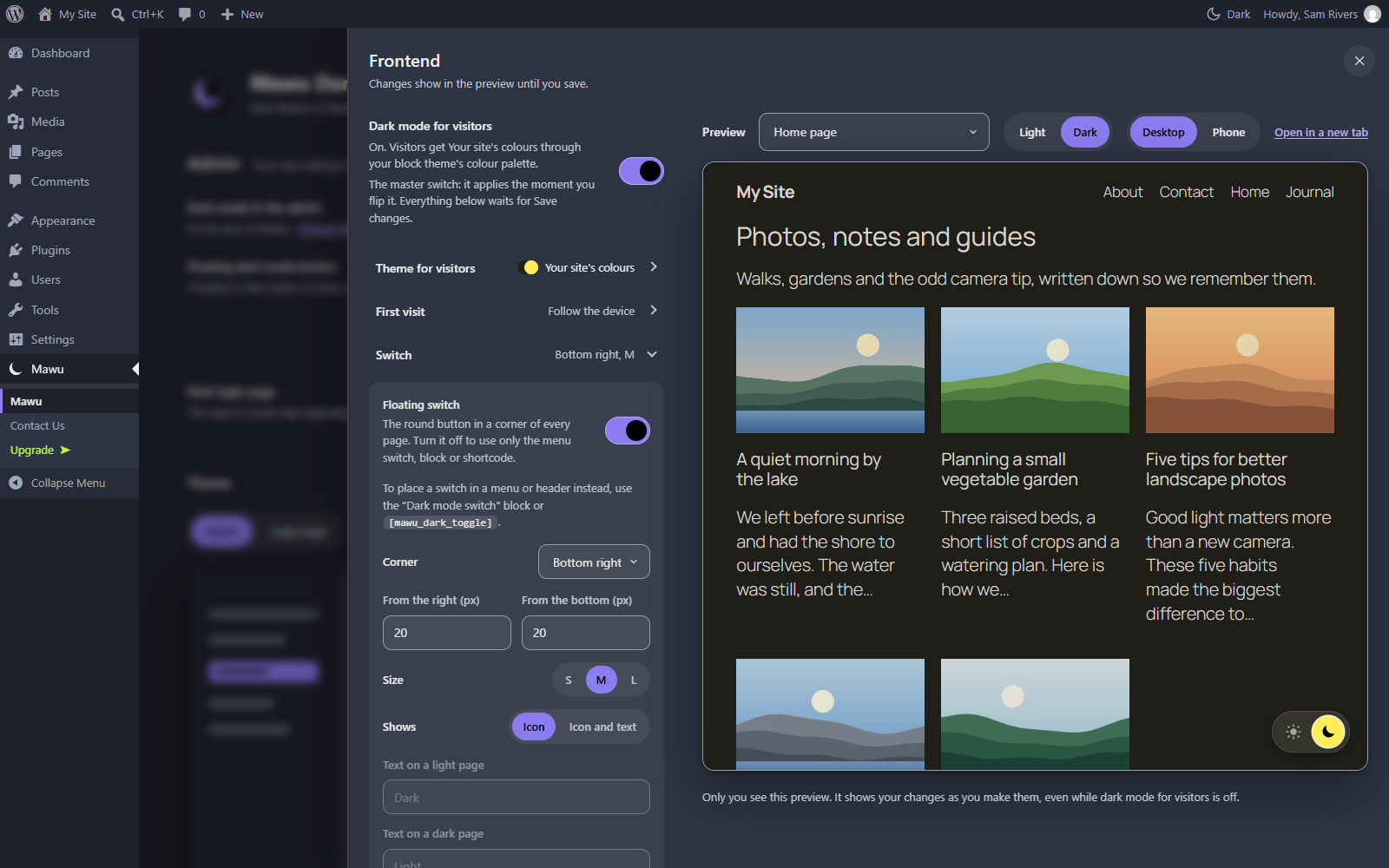
- Dark mode for visitors (optional, off by default): offer the same themes on your public site. Visitors get a switch (floating button, shortcode or block), the site can follow their device setting, and their choice is remembered. Photos are dimmed, never inverted. You can exclude elements or whole pages. “Your site’s colours” makes a dark theme from your own theme’s colours. A live preview shows your changes before you save. Put the switch in any corner, set its size and text, show it on phones or desktops only, hide it on some pages, or add it to a menu.
- Photo brightness: choose how much photos dim in dark mode, from 50% to 100%, and lower their contrast a little if you like. Logos and icons are left alone.
- Dark mode links: add
?mawu=darkor?mawu=lightto any link to your site. The page opens in that mode and remembers it. - Light, Dark and Auto: turn on a three-way switch, so visitors can go back to following their device at any time.
- Elementor widget: a “Dark mode switch” widget with text, size and alignment, when Elementor is active.
- Your own shortcut: record any key combination for the quick switch, on the settings page or your profile. It never fires while you type, and common browser and editor shortcuts are refused.
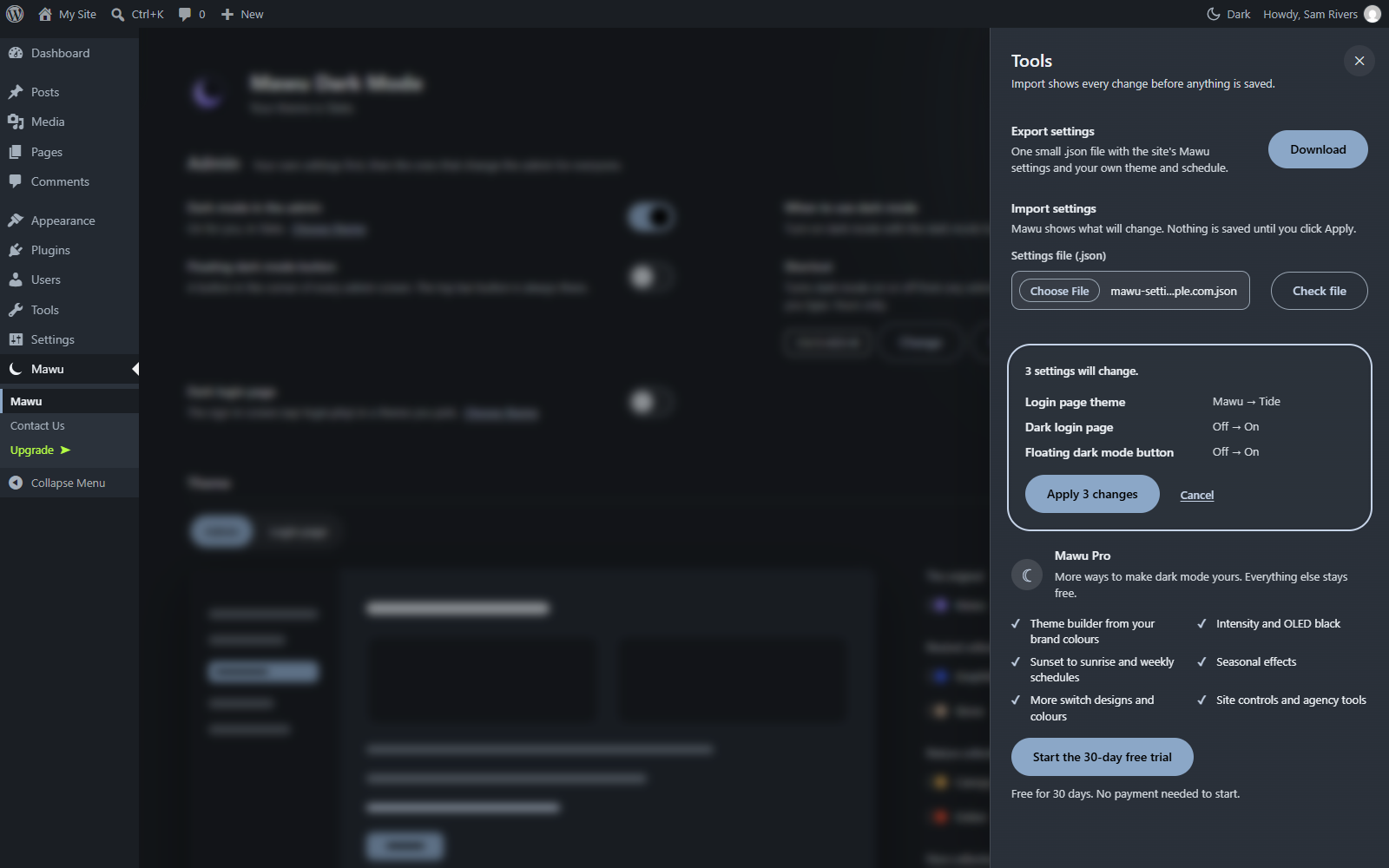
- Export and import: copy your Mawu settings to another site in one small file.
- Private and light: no license key, and no data leaves your site unless you opt in (see External services). The dark-mode script is about 10 KB and only loads when dark mode is on.
How dark mode for visitors works
It is off until you turn it on under Mawu More settings Frontend. Mawu first uses your theme’s own color settings (block themes and many popular themes), so the result looks designed, not filtered. For other themes it adjusts each element’s color after the page loads. A tiny script in the page head applies the visitor’s choice before the first paint, so there is no white flash, and it works with page caching because nothing changes on the server.
For developers
When dark mode for visitors is on, <html> gets the class mawu-dark while the page is dark. It is set before the first paint, so your theme CSS can use it: .mawu-dark .site-header { ... }.
Mawu Pro adds a JavaScript API with a change event, a class that turns any element into a switch, and PHP hooks.
Privacy
Mawu does not use cookies for visitors and sends nothing to anyone else.
- The visitor switch: a visitor’s dark or light choice is kept in their own browser (localStorage, key
mawu-dark-mode). It is never sent to your site. - Visitor stats (Pro, off by default): when you turn them on, each visitor’s browser tells your site once a day whether the page was dark or light, and whether that came from the device setting, the switch or your site’s setting. Your site stores only daily totals, in its own database, for 90 days. No IP address, browser, page address or other personal data is stored. To count a browser only once a day, it keeps the date of the last count in localStorage (
mawu-dark-mode-counted). People signed in as editors or admins are not counted. You can delete the numbers at any time. - Email reports (Pro, off by default): a summary of those totals is sent with your site’s own email to the addresses you choose.
Mawu adds a suggested paragraph to Settings Privacy Policy guide, for your privacy policy.
External services
Dark mode itself runs entirely in your browser and your own WordPress install. Mawu uses the Freemius SDK for Mawu Pro licensing and updates:
Freemius (licensing) — on activation, Freemius shows its own opt-in screen. It asks permission before any data is shared, and you can skip it; skipping does not change how the plugin works. Only if you opt in, Freemius receives your site URL, WordPress, PHP and plugin versions, your admin email and name, plugin events such as activation, deactivation and uninstall, and (if you leave that option on) your list of plugins and themes. It contacts the Freemius API (api.freemius.com) to check license status and deliver Pro updates. See Freemius’s Privacy Policy: https://freemius.com/privacy/ and Terms of Service: https://freemius.com/terms/
Schermafbeeldingen



Blokken
Deze plugin heeft 1 blok.
- Dark mode switch
Installatie
- In your dashboard, go to Plugins Add New, search for “Mawu Dark Mode”, then install and activate it. (Or upload the
mawu-dark-modefolder to/wp-content/plugins/.) - Open Mawu in the admin menu, pick a theme in the Admin section and click “Use”. You can also pick one under Users Profile Admin Color Scheme.
- Optional: set your schedule under Mawu More settings Schedule (or Users Profile), and turn on the dark login page in the Admin section.
FAQ
-
How do I turn on dark mode in the WordPress admin?
-
Install and activate Mawu, then open Mawu in the admin menu, pick the theme you like and click “Use”. The whole admin changes straight away. You can switch back to WordPress’s default scheme from the same page.
-
Can I switch dark mode on and off quickly?
-
Yes. Click the moon or sun button in the top admin bar, on any screen. It switches at once, without reloading the page, and remembers both your dark theme and your light scheme. Hover the button to pick another theme. Ctrl+Alt+D does the same, and you can pick your own key combination on the Mawu settings page or on your profile. You can also turn on a floating button in the corner, in the Admin section of the Mawu settings page.
-
Does it work with the block editor (Gutenberg)?
-
Yes. The toolbar, sidebars, buttons and the writing canvas all follow your chosen theme.
-
Does it work with the Classic Editor?
-
Yes. Turn on “Classic Editor: dark writing area” in the Admin section of the Mawu settings page. It applies when the Classic Editor plugin is active.
-
Can it switch on automatically at night?
-
Yes, two ways. On Mawu More settings Schedule (or your Profile screen), under “When should dark mode be on?”, choose “On a schedule”, set your hours and pick a theme. Mawu switches to it during those hours and back to your usual scheme the rest of the day. Or choose “Match my device”: the admin follows your computer’s or phone’s light or dark setting, and changes as soon as it does. Both are per person. A click on the dark mode switch still wins until the next change.
-
Does this change what my site visitors see?
-
Not unless you turn on dark mode for visitors under Mawu More settings Frontend. It is off by default. Admin dark mode never changes your public site.
-
Will dark mode for visitors work with my theme?
-
It is tested with the default WordPress themes and popular themes such as Astra, Kadence, GeneratePress, Blocksy, OceanWP and Neve, and with Elementor and other page builders. If a part of your page looks wrong, add its CSS selector to the exclude list, or tick “Never darken” on that page, and please tell us in the support forum.
-
Will other plugins’ settings pages change too?
-
Yes, in most cases. Mawu reads their real colors, so it works without a list of supported plugins. If something stays light, please open a support topic with the plugin’s name.
-
Can a link open my site in dark mode?
-
Yes. Add
?mawu=darkto any link, for examplehttps://example.com/?mawu=dark. Use?mawu=lightfor light, or?mawu=autoto follow the visitor’s device again. The choice is remembered like a click on the switch, and the parameter is removed from the address bar. It only works while dark mode for visitors is on. Page caches are not affected, because the page itself never changes. -
My theme is already dark. Can visitors get a light version?
-
Yes, with Mawu Pro. Under Mawu More settings Frontend, open “Your site’s own look” and pick “My site is dark”. Your site stays dark as it is, and the switch offers a light version made from the theme you choose. Photos keep their own look.
-
Can I translate the visitor switch?
-
Yes. Every word the switch shows or reads out can be translated, for example with Loco Translate. Text you type in the Switch settings is registered with WPML and Polylang, so you can translate it in their string translation screens.
-
Does it clash with Dark Reader, Smart Invert or Chrome’s forced dark?
-
No. Mawu tells the browser which mode each page is in, so Chrome’s forced dark leaves it alone. It also asks Dark Reader to stand down, and if an older Dark Reader paints the page anyway, Mawu steps back so nothing is darkened twice. With iOS Smart Invert, photos are not dimmed a second time. In Windows contrast themes, the switch still shows its state.
-
Does this send any data anywhere?
-
Not unless you opt in. Dark mode runs in your browser and your own WordPress install. Pro’s visitor stats, if you turn them on, are stored on your own site only (see Privacy). Mawu uses Freemius for Pro licensing, and its opt-in screen on activation can be skipped. See External services above for what is sent if you opt in.
-
Is there a Pro version?
-
Yes. Mawu Pro and the Agency plan are available now. The free plugin stays complete: every theme, both editors, the login page, the quick switch, the schedule and dark mode for visitors stay free. Pro adds a theme builder, intensity and OLED black, sunset-to-sunrise and weekly schedules, site controls for roles and screens, more visitor switch designs and colours, dark versions of your images, videos, logo and site icon, rules by category, tag, post type and WooCommerce product (never darken, start dark or hide the switch), a light version for sites that are dark by design, visitor stats (how many visitors use dark mode, and why) with weekly or monthly email reports, and seasonal effects (snow with the Christmas themes, ghosts and bats with the Halloween ones). Agency covers up to 100 sites and has everything in Pro, plus white-label, client lock, settings sync between sites and multisite network controls. There is a 30-day free trial, with no payment needed to start. See Mawu More settings Tools.
-
Can I copy my settings to another site?
-
Yes. On Mawu More settings Tools, “Download settings file” saves one small .json file with the site’s Mawu options and your own theme and schedule. On the other site, choose that file and click “Check file”. Mawu shows what will change, and nothing is saved until you click Apply. Themes the other site doesn’t have are skipped.
-
Can I add my own CSS for dark mode?
-
Yes, with WordPress’s own Additional CSS: Appearance Customize Additional CSS, or in a block theme the Site Editor’s Styles Additional CSS. Start each rule with
html[data-mawu-mode="dark"]so it applies only while a visitor has dark mode on:html[data-mawu-mode="dark"] .site-footer { background: #000; }Additional CSS only reaches your public site. For CSS in the admin (added by your own code or an admin CSS plugin), start each rule with
body.admin-color-and the Mawu theme’s name in lower case, so light schemes never match it:body.admin-color-graphite #adminmenu { border-right: 1px solid #333; } -
I make a plugin. How do I make my admin screens match Mawu?
-
Mawu adjusts other plugins’ screens automatically, but your own CSS loads first, so light panels can show for a moment before Mawu reaches them. To avoid that, use Mawu’s color variables with your normal color as the fallback:
background: var(--mawu-surface, #fff); color: var(--mawu-text, #1d2327);Available:
--mawu-bg,--mawu-surface,--mawu-surface-alt,--mawu-border,--mawu-text,--mawu-text-muted,--mawu-accentand--mawu-link. They are set on<body>only when the person viewing uses a Mawu theme, so nothing changes for anyone else.
Beoordelingen

Bijdragers & ontwikkelaars
“Mawu Dark Mode for the Admin Dashboard, Editor & Website” is open source software. De volgende personen hebben bijgedragen aan deze plugin.
Bijdragers
Vertaal “Mawu Dark Mode for the Admin Dashboard, Editor & Website” in je eigen taal.
Interesse in ontwikkeling?
Bekijk de code, haal de SVN repository op, of abonneer je op het ontwikkellog via RSS.
Changelog
0.12.0
- New: a three-way visitor switch, Light, Dark and Auto. Auto follows the visitor’s device again.
- New: right-to-left languages (Arabic, Hebrew, Persian, Urdu and others) are fully supported in the settings page, its panels and the quick switch.
- New: switch texts you type can be translated with WPML or Polylang.
- New: Mawu tells the browser which mode each page is in and steps aside for Dark Reader, so nothing is darkened twice.
- New for developers: the page has the class mawu-dark while it is dark.
- Pro: dark mode site check. Mawu opens some of your pages in dark mode, in your own browser, and lists faint text, logos that vanish on dark, light boxes and colours typed into posts, each with a fix.
- Pro: point-and-fix. In the Frontend preview, click any part that looks wrong and choose Leave it as it is, Make it darker or Pick a colour. Fixes are listed and can be undone.
- Pro: the block editor warns when a post has colours that will be hard to read in dark mode.
- Pro: rules by category, tag, post type and WooCommerce product: never darken, start dark or hide the switch.
- Pro: reverse mode for sites that are dark by design. Pick “My site is dark” and the switch offers a light version.
- Pro: give any image a dark mode version: content images, the header image, background images (pick them on the live preview), ACF image fields, and per page.
- Pro: the dark look can follow your theme’s colours: block theme palettes, Kadence and Elementor Global Colors, each checked for contrast.
- Pro: visitor stats. See how many visitors use dark mode, and whether it came from their device, the switch or your site’s setting, with no cookies and nothing personal. Off until you turn it on.
- Pro: weekly or monthly email reports of the visitor stats.
- Pro: send an event to Google Analytics or Tag Manager when a visitor uses the switch, if your site already has them.
- Pro: WordPress and WooCommerce emails stay readable in Gmail, Apple Mail and Outlook dark mode, with a Send me a test email button.
- Pro: X and Reddit embeds switch to their own dark look. Videos get a dark frame with no white flash, and Google Maps can be dimmed.
- Pro: dark logos on a see-through background no longer vanish in dark mode. They turn light or get a soft light backdrop.
- Pro: a new First visit choice, Their sunset. The site goes dark at each visitor’s own sunset and light at sunrise, without asking for their location.
- Pro: printed pages and PDFs always come out light, whatever the visitor chose.
- Pro: a warm night tint for the admin in the evening, like a night light, with a strength slider. Text keeps its contrast.
- Pro: a reading panel for visitors, with sepia, text size, line spacing, an easy-read font and less motion.
- Pro: a JavaScript API for developers, switched on in the Frontend panel.
- Pro theme builder: pick your own link colour, or leave it automatic.
- Pro: the seasonal effects Play button is easier to see, with a short hint the first time. The button says Done while you play, and Esc puts the effect away.
- Fixed: Trash, Delete, Spam and other delete links are red again in every theme, as in WordPress. They used to take the theme’s link colour.
- Fixed: Approve stays green, and Unapprove and “Not Spam” stay amber in the comment list. WooCommerce’s “Delete note” and ACF’s “Delete field” are red too.
- Changed: Graphite, Carbon, Slate, Stone and Frost links are now WordPress’s light blue. Graphite’s outline buttons (Apply, Filter, Search) use the same blue.
- Changed: Ember, Pine and Skyline keep their red buttons, but their links are now orange or gold. Candle and Cranberry links are orange. A link no longer looks like Delete or like plain text.
- Fixed: your own CSS can now change link and text colours in the admin and on your website. Mawu no longer forces its colours with !important.
- Fixed: links underline when you point at them. The current filter (“All”, “Published”) and tabs read as text, and info notices no longer look like links.
- Fixed: outline buttons and focus outlines are easier to see, and the block editor’s focus outline follows your theme.
- Fixed: “Quick Edit” and “Reply” look like links again, not white text. Menu count bubbles are red with a white number, as in WordPress.
- Fixed: colour pickers and swatches show their real colours, including the block editor’s colour palette. WooCommerce’s green “Live” badge keeps its green.
- Fixed: links in the admin footer and the media details window are easy to read. Comments waiting for approval keep a readable warm background.
- Fixed: the login page’s links, focus outlines and secondary buttons follow your theme. It also keeps the WordPress logo, or your own logo.
- Fixed: on your website, WooCommerce stock text, required stars, invalid fields and notices keep their green and red, and focus outlines in Twenty Twenty-One are easy to see.
- Fixed: Classic Editor text in the dark writing area is readable again on WordPress 7.1.4.
- Fixed: choosing Schedule keeps your theme. The line under the title says which theme your schedule shows.
- Fixed: the floating dark mode button is smaller and stays clear of Save buttons, the footer and the block editor’s side panels.
- Fixed: saving a custom theme no longer breaks the colours of the page you are on.
- Fixed: the notice close button, Quick Edit and buttons such as Choose a Site Icon are easier to read in dark themes.
- Fixed: settings text updates as you change things, without a reload. A save that fails now says so, and the Design list closes when you click its button again.
- Fixed: with Match my device on, the status line always says whether your device is light or dark now.
- Fixed: leaving the Frontend panel with unsaved changes and choosing Discard now goes where you clicked.
- Fixed: the import preview shows names, not codes. The theme builder points you to “Fix the colours for me” while checks fail.
- Fixed: the visitor switch works in private browsing and when a browser blocks site storage (the choice lasts for that page).
- Fixed: the visitor switch works with Enter and Space on pages whose scripts block key presses (LearnPress course pages).
- Fixed: fewer light flashes when a page opens in dark mode, also on themes that print their colours straight into the page or keep them in CSS variables.
- Fixed: Cover blocks and featured images over a photo keep their own colours in dark mode.
- Fixed: menu buttons stay visible, text over photos keeps its colour and links on dark backgrounds are easier to read on themes without colour variables.
- Fixed: switching back to light on some themes, where hidden menus and panels stayed dark.
- Fixed: plugin styles now go dark on themes with a built-in dark map too (LearnPress on Twenty Twenty-One).
- Fixed: faint form hints, plugin tables written with newer CSS and slider captions over photos read well in dark mode, and busy pages stay smooth while the dark look is applied.
- Fixed: visitor dark mode keeps working behind plugins that combine, defer or delay scripts (LiteSpeed Cache, WP Meteor, W3 Total Cache, Autoptimize, WP Fastest Cache, Breeze).
- Changed: the Customizer now always uses WordPress’s light look. It was only partly dark and hard to read.
- Changed: lighter on your server. Fewer database queries on every page, nothing runs for a feature you have not turned on, and smaller, minified files in wp-admin. The Mawu settings page loads faster.
- Changed: the Free version shows how to move to Pro if you already have a licence (Tools, and the Plugins screen).
- Changed: Contact Us is for Pro and trial sites. Everyone else gets a Support Forum link to WordPress.org.
- Changed: Agency white-label. Client sites no longer see Mawu’s name or Freemius links, and the default theme shows as Classic dark.
- Changed: the Agency plan now covers up to 100 sites.
0.11.0
- New: Mawu has its own menu item and one settings page. Admin settings are on the page. Frontend, Schedule and Tools open in panels from the side, under More settings. Old links to Settings Mawu Dark Mode and to the old Mawu pages still work.
- New: a drawn preview of each theme that repaints as you move over the list, with a line that says when dark mode turns on. Each theme has a one-line description.
- New: a People section shows who uses which theme, 20 at a time, with search.
- New: the Schedule panel (it was called “Dark hours”). Editors and authors can still set their schedule on their profile.
- New: if your site clock is a fixed UTC offset, the schedule tells you it will not change for daylight saving, with a link to pick your city.
- New: “Match my device”. The admin follows your computer’s or phone’s light or dark setting, live, with your own dark theme and light scheme. Choose it under “When to use dark mode”, on the settings page or your profile.
- New: choose your own quick switch shortcut. Press a key combination to record it, reset it to Ctrl+Alt+D, or turn it off. It needs Ctrl or Alt, never fires while you type, and refuses common browser, system and editor shortcuts. Set it on the Mawu settings page or your profile.
- New theme: Graphite, plain grey with WordPress blue, in a new Neutral collection. Thanks to the reviewer who asked for it.
- New: three more neutral themes in the Neutral collection. Carbon is plain dark grey with no colour at all, Slate is a cool blue-grey and Stone is a warm grey. Each passes the same contrast checks as every other theme, and their links are underlined and bold in text.
- New: Halloween and Christmas collections, three themes each. That makes 23 themes.
- New: dark mode for your website’s visitors, with the same themes. Off by default. Visitors get a switch, the site can follow their device setting, and photos are dimmed, never inverted.
- New: a Frontend panel with a live preview of your site, and a “Your site’s colours” theme made from your own theme.
- New: choose where the visitor switch sits, its size, its text and which screens show it, hide it on some pages, or add it to a menu.
- New: a free “Sun and moon pair” switch design for visitors. The sun and the moon sit side by side, and the active one is lit.
- New: choose how bright photos are in dark mode, with an option to lower their contrast a little. Logos and icons stay as they are.
- New: open any page in dark or light mode with
?mawu=darkor?mawu=lightin the link. - New: a “Dark mode switch” widget for Elementor.
- New: export your Mawu settings to a file and import them on another site, with a preview of what will change before anything is saved.
- New: “Rate Mawu” links on the Plugins screen and on the settings page. Nothing pops up.
- Changed: the Admin section’s first group holds Dark mode, When to use dark mode, the floating button and the shortcut, with no group headings. Theme choices on the Frontend, Schedule and login page settings share one list design (collections, swatch and name).
- Changed: the settings page follows your own color scheme. A Mawu theme paints it in that theme’s colors, and WordPress’s own schemes give a light page in their accent color. It changes straight away when you switch, with no reload. The Auto, Light and Dark buttons are gone.
- Changed: every theme picker shows each theme’s name next to its colours.
- Changed: the plugin’s name now includes your website: “Mawu Dark Mode for the Admin Dashboard, Editor & Website”.
- Faster: switching themes is instant. The page repaints first and saves in the background.
- Faster: the People section uses one database query instead of one per theme.
- New: visitor dark mode checks text on bright or coloured buttons, menus and boxes, on hover and focus too, and keeps it readable.
- Fixed: in the block editor with Carbon, the settings sidebar and List View stayed white with very faint text. Every theme now shows them dark and easy to read.
- Fixed: the block editor’s sidebar, List View, the Meta Boxes area and boxes from other plugins now share one background colour, and the Meta Boxes drag handle is no longer a white bar.
- Fixed: the post title box at the top of the block editor stands out from the toolbar again, and editor notices keep their colour (amber for warnings, red for errors, green for success, blue for information).
- Fixed: scrollbars are easy to see in every dark theme, including the List View, the sidebar and the writing area.
- Fixed: in the block editor, a Save or Publish button you cannot press yet now looks clearly greyed out in every theme, and the Publish button’s label is readable on light theme colours.
- Fixed: the numbers in the admin menu’s count bubbles (comments, updates) use the theme’s own colours, so they are easy to read on light accents.
- Fixed: after switching to light without a reload, the Bulk Edit fields on the Posts screen no longer keep white text.
- Fixed: WooCommerce’s “View cart” button and link are easy to read in dark mode.
- Pro: intensity slider and OLED black, sunset-to-sunrise and weekly schedules, a theme builder, site controls for roles and screens, seasonal effects, more visitor switch designs and colours with drag to place, dark versions of images, videos, logo and site icon, and category, tag and post type excludes.
- Pro: seasonal effects can run only on the screens you tick in a named list.
- Pro: visitor seasonal effects follow the theme your visitors get: snow with a Christmas theme, ghosts and bats with a Halloween one.
- Pro: the Dot switch design is now clearly visible on any page.
- Pro: one licence activation covers a whole multisite network.
- Agency: white-label, client lock and settings sync, in their own Agency panel under More settings, plus multisite network controls.
0.10.3
- The dark mode button now also switches the Classic Editor’s writing box straight away, with no reload.
0.10.2
- The dark mode button now also switches the block editor’s writing area straight away, with no reload.
- Fixed: after switching inside the editor, the theme list’s colour dots and the button icon could look dimmed.
0.10.1
- New: a dark mode button in the top admin bar on every screen. One click switches dark mode on or off with no page reload, and hovering it lists all 13 themes. Ctrl+Alt+D works too.
- New: an optional floating dark mode button for the corner of every screen. It is off by default; turn it on under Settings Mawu Dark Mode.
- Switching to light during your dark hours keeps it light until those hours end.
- Settings page: the theme list now uses several columns when there is room, so it is shorter on wide screens.
0.10.0
- A new, full-width settings page with more space and less clutter.
- Themes: pick a theme from the list to see it in a large live preview. Nothing changes until you click “Use”. You can undo straight away.
- “Also darken” options are now switches that save as you flip them, with no Save button and no page reload.
- A new People section shows how many people use a Mawu theme and dark hours, and which themes they use.
- A one-time note, two weeks after install, asks if you’d like to rate Mawu. It goes away for good once you answer.
- Everything still works with JavaScript turned off.
- Fixed: in the left menu, the page you’re on now stands out, with brighter text, a darker row and an accent bar. Before, only bold text marked it.
Older versions: see the full Mawu Dark Mode changelog.