
Beschrijving
GetBooqin turns WordPress into a booking system for salons, clinics, cleaners, tutors, consultants and any other appointment-based business.
Dashboard
- Overview – appointments, pending approvals, active services and no-show rate, a setup checklist, your shareable booking link and simple charts.
- Appointments – list and month calendar views, status filters and search, and manual booking with conflict and business-hours checks.
- Waitlist – take requests the same way you would over the phone. Optionally offer freed slots automatically: when a booking is cancelled, declined or marked as a no-show, the next matching person is emailed a link to claim it.
- Services – price, duration, category, colour and who can be booked.
- Customers – searchable list, created automatically from bookings or added by hand.
- Settings – your profile; business details, hours, booking page, logo and colour; your own wording (for example “Session” and “Client” instead of “Appointment” and “Customer”); Overview cards; and booking rules such as slot interval, minimum notice, advance booking, cancellation cutoff and auto-confirm.
Booking form
Add the booking form to any page with:
[getbooqin_booking]
To show a single service only, use [getbooqin_booking service="123"].
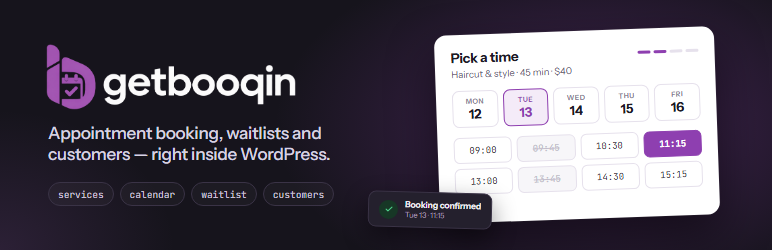
Customers pick a service, choose one of the next available times (or a specific date), enter their details and confirm. If nothing suits, they can join the waitlist. Confirmation emails include a link that lets customers move their booking to another free time or cancel it online, if you allow it — both close a set number of hours before the appointment.
GetBooqin account
You can use the plugin two ways:
- As a guest — no account needed. Everything works inside WordPress and nothing is sent anywhere.
- Connected to a GetBooqin account — log in (or sign up) with Google on app.getbooqin.com and you are sent straight back to WordPress. Your bookings, customers, services, waitlist and settings then sync both ways with the GetBooqin dashboard, so you can manage them from either place. Staff are sent to the dashboard, and a staff member’s job title and phone number can be edited there too; their name, email address and WordPress role stay yours to change in WordPress. You can connect at any time from Settings Cloud sync, and disconnect there too.
Your bookings, services, customers and settings are always stored in your WordPress database.
External services
This plugin connects to GetBooqin (https://app.getbooqin.com), operated by the plugin author, only if you choose to connect a GetBooqin account. In guest mode it makes no external requests.
- When you click Continue with Google, your browser is sent to app.getbooqin.com with your site URL, site name and a one-time security value. Google sign-in happens on app.getbooqin.com; the plugin never sees your Google password.
- After sign-in, the plugin sends the one-time code and your site URL to app.getbooqin.com to receive an access token, your account name and email, and your plan details.
- While connected, the plugin fetches your account and plan details from app.getbooqin.com at most every 12 hours.
- While connected, the plugin sends your bookings (appointments), customers (name, email, phone), services, staff (name, email, job title, phone, photo URL), waitlist entries and business settings to app.getbooqin.com — everything on connecting, then each change shortly after it is made.
- While connected, the plugin checks app.getbooqin.com every five minutes for changes made on the GetBooqin dashboard (new bookings, status changes, edited services, customers, waitlist entries, staff job titles and phone numbers, and settings) and saves them in WordPress.
- When you log out, the plugin tells app.getbooqin.com to revoke the token and stops syncing.
Terms of Service: https://app.getbooqin.com/terms
Privacy Policy: https://app.getbooqin.com/privacy
Credits
Bundled fonts: Instrument Sans and JetBrains Mono, both under the SIL Open Font License 1.1 (see assets/fonts).
Installatie
- Upload the
getbooqinfolder to/wp-content/plugins/, or install the plugin through the Plugins screen. - Activate the plugin.
- Open GetBooqin in the admin menu and either log in with Google to sync with the GetBooqin dashboard, or choose Use as guest to keep everything in WordPress.
- Follow the three-step setup: your business, opening hours, then go live.
FAQ
-
Who can be booked?
-
Any user who can edit posts on your site can be assigned to a service. Assign people from the service’s edit screen.
-
Does it send emails?
-
Yes. Customers get a confirmation (or a “request received” message when auto-confirm is off), and the business email gets a notice for every online booking. Emails are sent with
wp_mail(), so any SMTP plugin will work. -
Which timezone is used?
-
The timezone set under Settings General, which defaults to your site timezone.
-
Do I need a GetBooqin account?
-
No. Choose Use as guest on the first screen and the plugin works entirely inside WordPress. Connect an account later from Settings Cloud sync if you want to use the GetBooqin dashboard too; everything already on your site is copied over when you connect.
-
What happens when I uninstall the plugin?
-
Deleting the plugin removes its database tables, settings and user meta.
Beoordelingen
Er zijn geen beoordelingen voor deze plugin.
Bijdragers & ontwikkelaars
“GetBooqin” is open source software. De volgende personen hebben bijgedragen aan deze plugin.
Bijdragers
Vertaal “GetBooqin” in je eigen taal.
Interesse in ontwikkeling?
Bekijk de code, haal de SVN repository op, of abonneer je op het ontwikkellog via RSS.
Changelog
1.3.0
- Customers can reschedule themselves. The link in their confirmation email now offers a change of time as well as a cancellation, so somebody who cannot make Tuesday keeps the booking instead of cancelling it. Turn it on or off under Settings Booking rules; the cancellation cutoff applies to changes too.
- Two-way sync is now genuinely two-way: bookings, customers, services, waitlist entries and settings move in both directions with the GetBooqin dashboard.
- Staff are sent to the dashboard, and their job title and phone number can be edited there. Their name, email address and WordPress role stay yours to change in WordPress.
- Settings Cloud sync now tells you when the dashboard could not accept a record, and why. A sync that quietly dropped something used to look identical to one that worked.
- The waitlist screen no longer says automatic offers are on when there is no booking page for the claim link to point at.
- Records deleted on the dashboard — customers and bookings — are now removed here too.
- Fixed: a booking deleted in the dashboard could stay on your calendar, holding a slot nobody could rebook.
- Fixed: the plugin now retries telling the dashboard about records it created, instead of giving up and risking duplicates.
- Code now passes WordPress Coding Standards, and ships a translation template.
1.2.0
- Use the plugin as a guest, without an account. Nothing leaves WordPress.
- Connect a GetBooqin account to sync bookings, customers, services, waitlist and settings both ways with the GetBooqin dashboard. Staff are sent there too, and their job title and phone can be edited from the dashboard.
- New Settings Cloud sync screen: connection status, Sync now, disconnect.
1.1.0
- Log in with a GetBooqin account (Google) before using the dashboard.
- New three-step setup wizard with industry presets.
- Booking reminder emails.
- Bundled Instrument Sans and JetBrains Mono fonts.
1.0.0
- Complete rewrite as a booking system: dashboard, appointments, waitlist, services, customers, settings and the
[getbooqin_booking]multi-step booking form.
0.0.2
- URI url Fixed.
0.0.1
- Initial release.